Everything Creatyk does

Every part of the app, screen by screen, in real screenshots. Anything that needs Nova or Quasar says so; everything else is free.

One button, or four levels

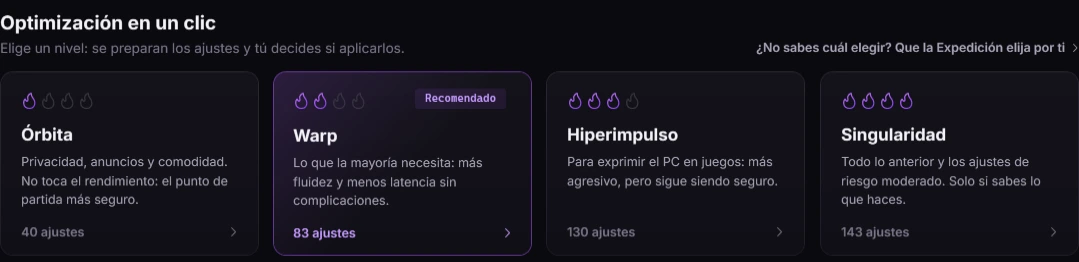
"Optimize now" turns on every recommended tweak you're missing, in one go. If you'd rather choose, each level is a stage of the flight: it stages its tweaks and you decide whether to apply them.

  1. Optimize now

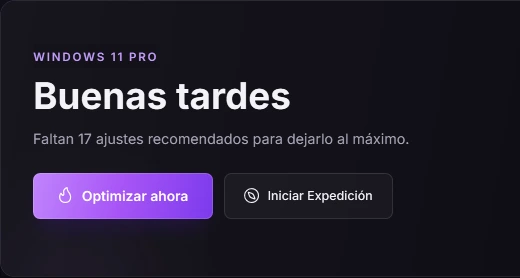
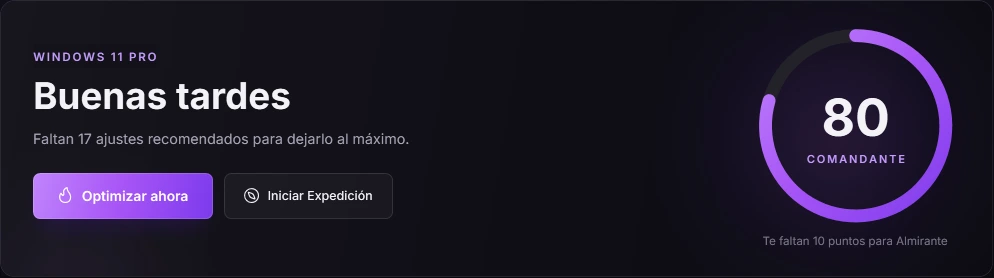
    Home tells you how many recommended tweaks you're missing and gives you a score from 0 to 100, with ranks from Cadet to Admiral. One click applies them, with a restore point first.

    With Spark it applies the Orbit level; with Nova, every recommended tweak.

    Creatyk's Home screen: "Buenas tardes", 17 recommended tweaks missing and the Optimize now and Start Expedition buttons (the app shown in Spanish).
  2. Orbit

    Free

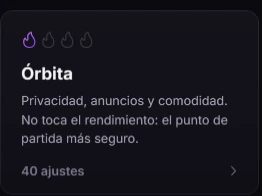
    Privacy, ads and comfort. It doesn't touch performance: the safest place to start, and it's free.

    The Orbit level in Creatyk: one flame lit, privacy, ads and comfort (the app shown in Spanish).
  3. Warp

    With Nova and Quasar

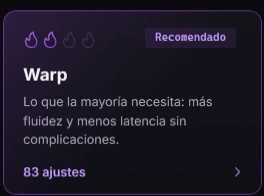
    What most people need: smoother play and lower latency, with no complications. It's the level the app recommends.

    The Warp level in Creatyk: two flames lit, the Recommended label, smoother play and lower latency (the app shown in Spanish).
  4. Hyperdrive

    With Nova and Quasar

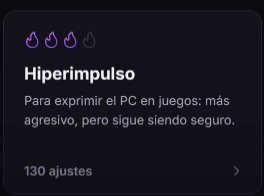
    To squeeze your PC for games: more aggressive, and still safe.

    The Hyperdrive level in Creatyk: three flames lit, more aggressive and still safe (the app shown in Spanish).
  5. Singularity

    Quasar only

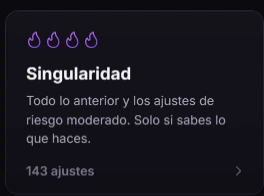
    Everything above plus the moderate risk tweaks, only if you know what you're doing. High risk tweaks and the ones that lower security are never part of a level.

    The Singularity level in Creatyk: all four flames lit and the moderate risk tweaks (the app shown in Spanish).
Creatyk's Home screen: "Buenas tardes", 17 recommended tweaks missing, the Optimize now and Start Expedition buttons and a score of 80, Commander rank (the app shown in Spanish).
One click optimization with Orbit highlighted: one flame lit, privacy, ads and comfort (the app shown in Spanish).
One click optimization with Warp highlighted: two flames lit and the Recommended label (the app shown in Spanish).
One click optimization with Hyperdrive highlighted: three flames lit (the app shown in Spanish).
One click optimization with Singularity highlighted: all four flames lit (the app shown in Spanish).

212tweaks, across ten pages

  • System
  • Performance
  • Network
  • GPU & gaming
  • Discord
  • Peripherals
  • Privacy & debloat
  • Services
  • Advanced
  • Customize

Every tweak, explained

Each one says what it changes, why, and how risky it is. Nothing is applied until you press "Apply changes", and if a tweak fails halfway, the whole tweak is rolled back.

  • Safe
  • Moderate
  • High
  • Security

High risk tweaks and the ones that lower security, like VBS or the Spectre mitigations, only ever go on when you turn them on yourself, after a warning.

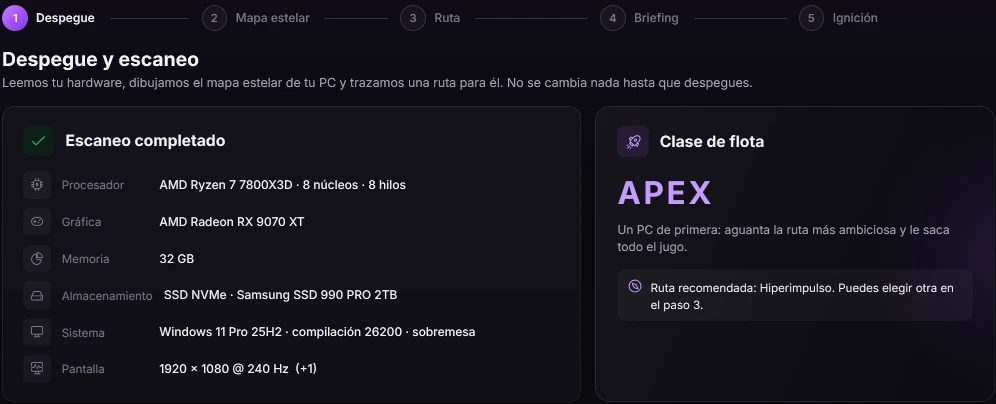
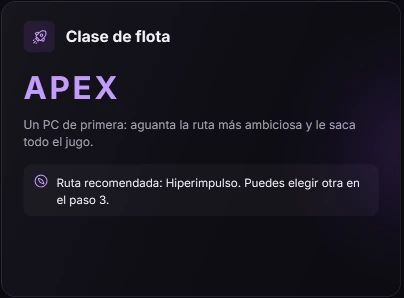
The Expedition's launch in Creatyk: scan complete for the processor, graphics, memory, storage and display, APEX fleet class and the Hyperdrive route recommended (the app shown in Spanish).
APEX fleet class in Creatyk's Expedition, with the Hyperdrive route recommended (the app shown in Spanish).

Let the Expedition choose

A guided setup in five steps: it reads your hardware without changing anything, rates each part and suggests a route of tweaks made for your PC.

  1. LaunchReads your processor, graphics card, memory, drive and display.
  2. Star mapRates each part as ELITE, SOLID or LIMITED.
  3. RouteOrbit, Warp, Hyperdrive or Singularity, counted for your PC.
  4. BriefingWhat will be turned on, what you already have and what gets skipped.
  5. IgnitionApplies the route, with a restore point first.

It never recommends Singularity, and on a laptop it stops at Warp. Routes follow your plan: Orbit is free, Warp and Hyperdrive come with Nova, and Singularity with Quasar.

Automatic game mode

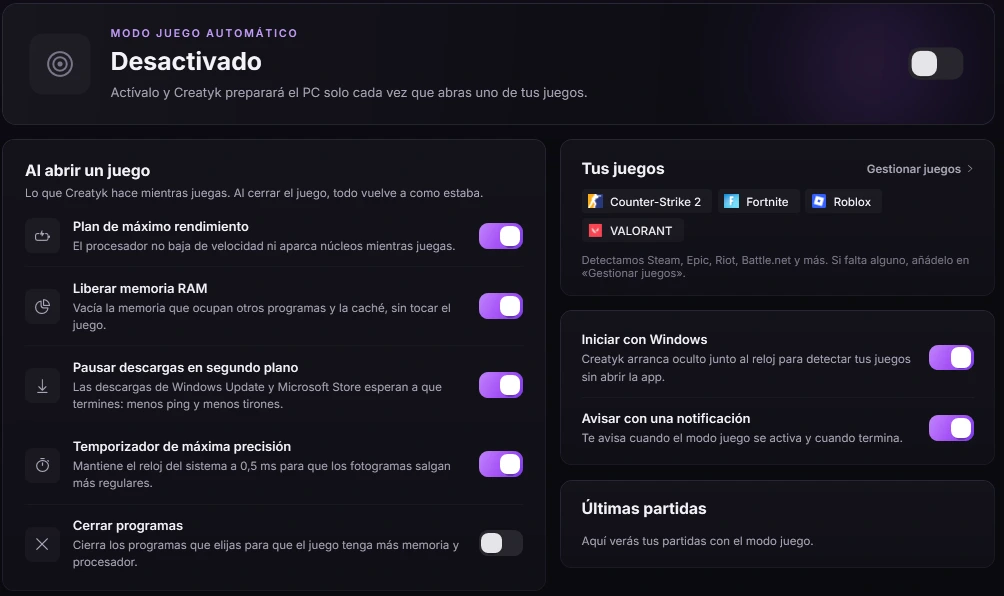
When you open one of your games, Creatyk gives your PC everything it has. When you close it, everything goes back the way it was.

With Nova and Quasar

Creatyk's game mode: the automatic mode switch, the "Al abrir un juego" (when a game opens) list with its five options, the detected games, start with Windows and the latest sessions (the app shown in Spanish).
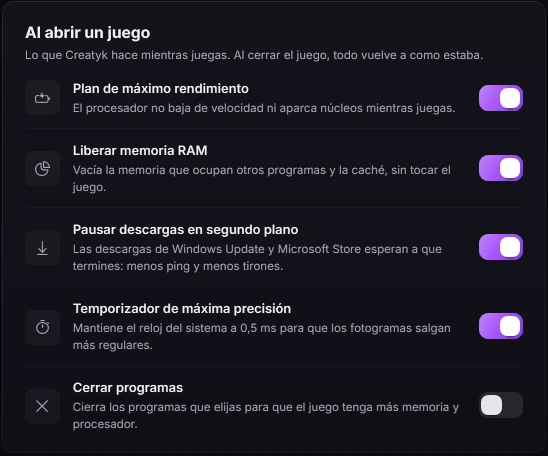
Game mode's "when a game opens" list: maximum performance plan, free RAM, pause downloads, high precision timer and close programs (the app shown in Spanish).
2 s
Every 2 seconds it checks for an open game: Steam, Epic, Riot, Battle.net and any you add yourself.
0.5 ms
Maximum performance power plan, free RAM, paused downloads and the system timer at 0.5 ms.
10 s
Ten seconds after you close the game it undoes everything. If the app or the PC crashes, it undoes it when they're back.
95 °C
It watches temperatures and warns you if the CPU reaches 95 °C or the graphics card 90 °C.

While you play it closes the programs you pick and, if you like, opens them again when you're done.

GPU & games, tab by tab

The page for players: Windows game mode, graphics settings, what fits your NVIDIA or AMD card, and a profile for each game.

  1. Game

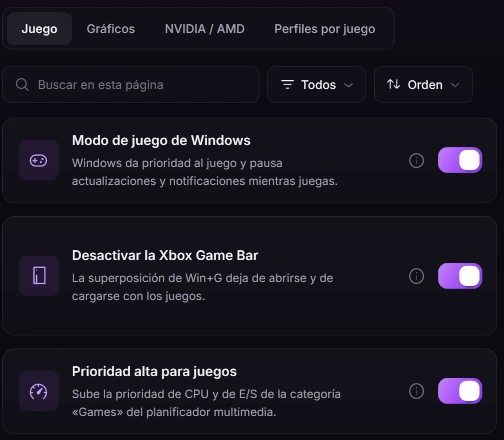
    Windows game mode without the Xbox Game Bar or background recording, high priority for games, and no volume drop for the game during calls.

    The Game tab in Creatyk's GPU & gaming page: Windows game mode, turn off the Xbox Game Bar and high priority for games, all three on (the app shown in Spanish).
  2. Graphics

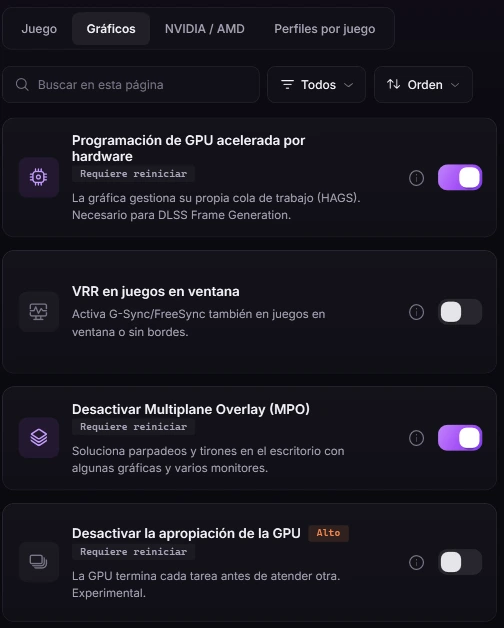
    Hardware accelerated GPU scheduling, VRR in windowed games or Multiplane Overlay. Every tweak tells you whether it needs a restart and how risky it is.

    The Graphics tab in Creatyk: hardware accelerated GPU scheduling, VRR in windowed games, turn off Multiplane Overlay and turn off GPU preemption, rated High risk (the app shown in Spanish).
  3. NVIDIA or AMD

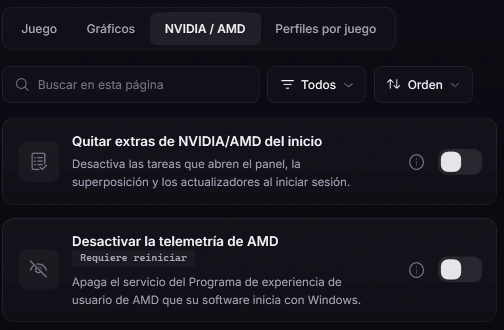
    It only shows what fits your card: removing its extras from startup and, on an AMD card, its telemetry and the ultra low power state.

    The NVIDIA / AMD tab in Creatyk with an AMD card: remove NVIDIA or AMD extras from startup and turn off AMD telemetry (the app shown in Spanish).
  4. Game profiles

    With Nova and Quasar

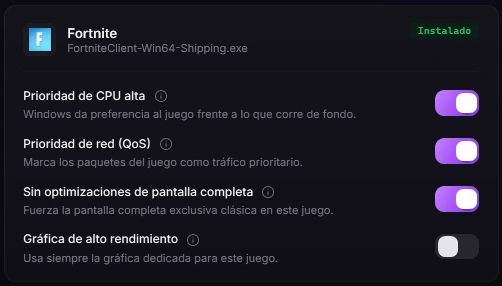
    CPU priority, network priority, classic fullscreen and the high performance GPU, only while that game is open.

    Fortnite's profile in Creatyk: high CPU priority, network priority and no fullscreen optimizations, all three on (the app shown in Spanish).
The Game tab in Creatyk's GPU & gaming page: Windows game mode, turn off the Xbox Game Bar and high priority for games, all three on (the app shown in Spanish).
The Graphics tab in Creatyk: hardware accelerated GPU scheduling, VRR in windowed games, turn off Multiplane Overlay and turn off GPU preemption, rated High risk (the app shown in Spanish).
The NVIDIA / AMD tab in Creatyk with an AMD card: remove NVIDIA or AMD extras from startup and turn off AMD telemetry (the app shown in Spanish).
Fortnite's profile in Creatyk: high CPU priority, network priority and no fullscreen optimizations, all three on (the app shown in Spanish).

Measure performance

  • A PC test in about 17 seconds: processor, memory, disk, threads and ping. 1000 points is a midrange gaming PC.

    Free

  • Your games' real FPS with Intel's PresentMon: average, 1% and 0.1% lows, and whether the game is held back by the CPU. It doesn't inject into the game, so anticheat software leaves it alone.

    With Nova and Quasar

Discord, kept in its place

A page so Discord doesn't cost your games performance. It recognizes Discord, PTB and Canary, and knows when it's open.

  • No hardware acceleration: the graphics card is for the game.
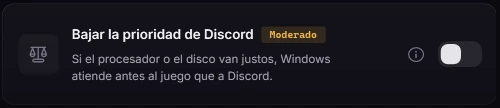
  • Low priority: when the processor or the disk are busy, the game goes first.
  • Don't open it with Windows, or open it minimized next to the clock.
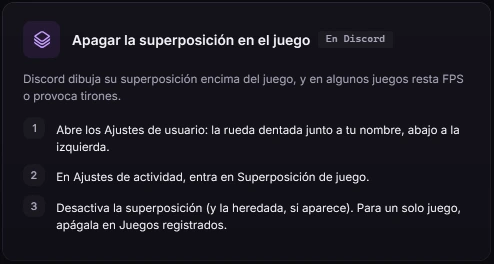
  • A guide for the overlay and animations, which can only be changed inside Discord. Its cache is cleared from Cleanup.
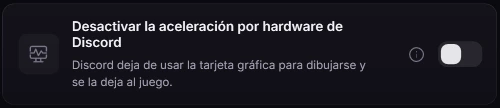
Creatyk's tweak to turn off Discord's hardware acceleration, with its switch (the app shown in Spanish).
Creatyk's tweak to lower Discord's priority, rated moderate risk (the app shown in Spanish).
Creatyk's guide to turning off Discord's in game overlay, in three steps (the app shown in Spanish).

Drivers, overclocking and fans

Your graphics card and your fans, from the app: an up to date, clean driver, starting values for overclocking and curves that follow temperature.

  1. Your driver, up to date

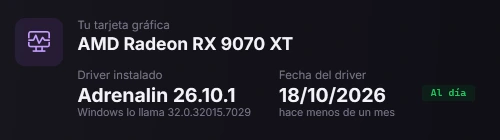
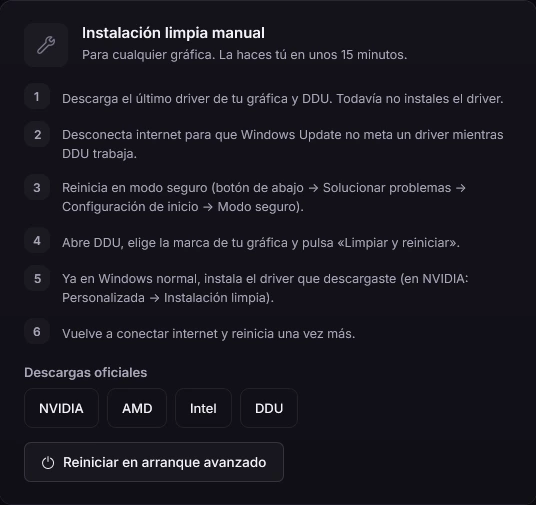
    Your graphics card, the driver you have, its date and whether it's current, with links to the official download and to DDU. Plus a clean install guide for any brand.

    AMD Radeon RX 9070 XT with the Adrenalin 26.10.1 driver from 18/10/2026, up to date (the app shown in Spanish).
  2. Automatic clean install

    Quasar only

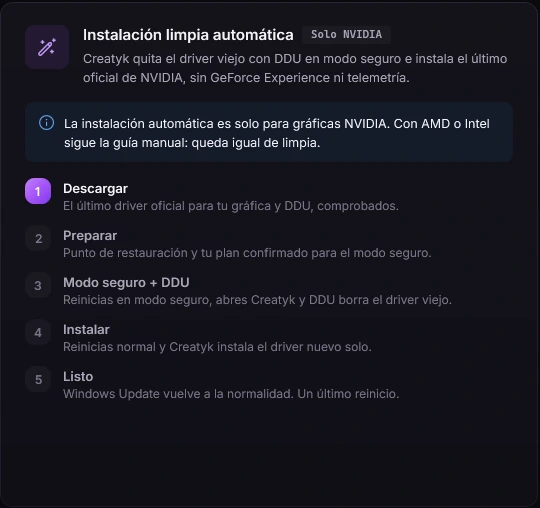
    For NVIDIA cards: it downloads the latest official driver and DDU, both verified, strips GeForce Experience and telemetry and walks you through Safe Mode. About 15 minutes and two restarts you do yourself.

    Creatyk's "Automatic clean install" card with its five steps: download, prepare, Safe Mode and DDU, install and done (the app shown in Spanish).
  3. 17 NVIDIA settings

    With Nova and Quasar

    The recommended global profile for the NVIDIA Control Panel, written with NVIDIA Profile Inspector. It changes only those values, and "Restore NVIDIA defaults" puts them back.

    17Recommended global profile

    17 NVIDIA Control Panel settings, in the global profile.

    Power management mode
    Prefer maximum performance
    Low Latency Mode
    On
    Maximum pre rendered frames
    1
    Texture filtering: quality
    High performance
    Texture filtering: anisotropic sample optimization
    On
    Texture filtering: negative LOD bias
    Clamp
    Texture filtering: trilinear optimization
    On
    Anisotropic filtering
    Application controlled
    Vertical sync
    Off
    Triple buffering
    Off
    Preferred refresh rate
    Highest available
    Threaded optimization
    On
    Shader cache size
    Unlimited
    Antialiasing: FXAA
    Off
    Image sharpening
    Off
    CUDA: force P2 state
    Off
    CUDA: sysmem fallback policy
    Prefer no sysmem fallback
  4. Overclocking, done sensibly

    Live clocks, starting values for each NVIDIA generation and a checklist before you raise anything. Changing an NVIDIA card's power limit from the app is a Quasar feature.

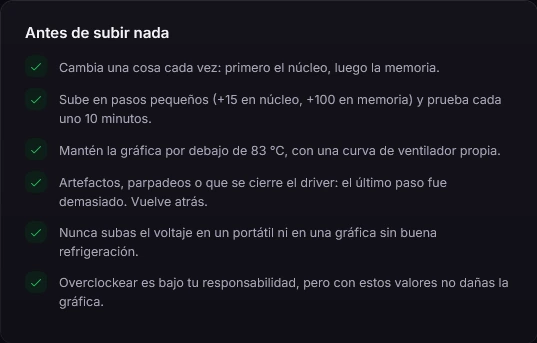
    Creatyk's "before you raise anything" overclocking checklist: change one thing at a time, go up in small steps and keep the card under 83 °C (the app shown in Spanish).
  5. Fans

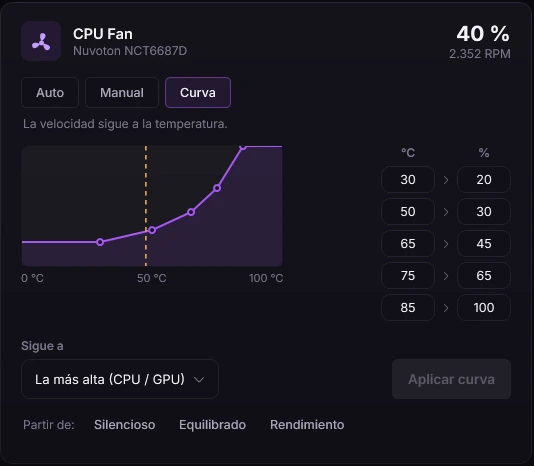
    Seeing their speeds is free. Nova adds fixed speeds, five point curves and presets; with Quasar your curves keep running after you close the app. If the CPU or the graphics card reaches 88 °C, every fan goes to 100%.

    Creatyk's CPU fan curve: from 20% at 30 °C up to 100% at 85 °C (the app shown in Spanish).
AMD Radeon RX 9070 XT with the Adrenalin 26.10.1 driver from 18/10/2026, up to date (the app shown in Spanish).
Creatyk's manual clean install guide: six steps, the official NVIDIA, AMD, Intel and DDU downloads, and the button to restart into advanced startup (the app shown in Spanish).
Creatyk's "Automatic clean install" card with its five steps: download, prepare, Safe Mode and DDU, install and done (the app shown in Spanish).

17Recommended global profile

17 NVIDIA Control Panel settings, in the global profile.

Power management mode
Prefer maximum performance
Low Latency Mode
On
Maximum pre rendered frames
1
Texture filtering: quality
High performance
Texture filtering: anisotropic sample optimization
On
Texture filtering: negative LOD bias
Clamp
Texture filtering: trilinear optimization
On
Anisotropic filtering
Application controlled
Vertical sync
Off
Triple buffering
Off
Preferred refresh rate
Highest available
Threaded optimization
On
Shader cache size
Unlimited
Antialiasing: FXAA
Off
Image sharpening
Off
CUDA: force P2 state
Off
CUDA: sysmem fallback policy
Prefer no sysmem fallback
Creatyk's "before you raise anything" overclocking checklist: change one thing at a time, go up in small steps and keep the card under 83 °C (the app shown in Spanish).
Creatyk's CPU fan curve: from 20% at 30 °C up to 100% at 85 °C (the app shown in Spanish).

Tools for every day

Cleanup, programs, processes, repairs and network tests, in one place. Almost all of it is free; anything that needs Nova says so.

Cleanup

Temporary files, browser, Discord and launcher caches, and Windows Update leftovers. You see how much each one takes up before anything is deleted.
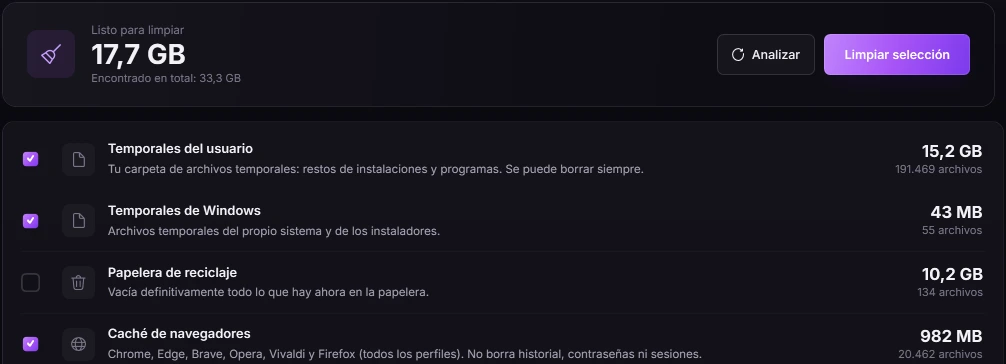
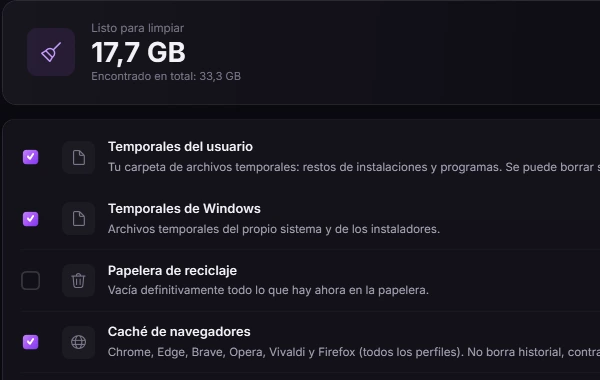
Cleanup in Creatyk: 17.7 GB ready to clean across user and Windows temporary files, the Recycle Bin and browser caches (the app shown in Spanish).
Cleanup in Creatyk: 17.7 GB ready to clean, with user and Windows temporary files, the Recycle Bin and browser caches (the app shown in Spanish).

34checked programs

Install programs

Installed in one go with winget, with no setup wizards, and "Update all" keeps them current.

Game stores

  • Steam
  • Epic Games
  • Battle.net
  • EA app
  • Ubisoft Connect
  • GOG Galaxy

Talk to friends

  • Discord
  • TeamSpeak
  • Telegram
  • WhatsApp

Browsers

  • Google Chrome
  • Firefox
  • Brave
  • Opera GX

Record and stream

  • OBS Studio
  • Streamlabs
  • Medal
  • ShareX

Hardware tools

  • MSI Afterburner
  • HWiNFO
  • CPU-Z
  • GPU-Z
  • FanControl
  • Parsec

What games need

  • Visual C++ (x64)
  • Visual C++ (x86)
  • DirectX
  • .NET 8 Desktop

Utilities

  • 7-Zip
  • WinRAR
  • VLC
  • Spotify
  • Notepad++
  • Everything

Repair Windows

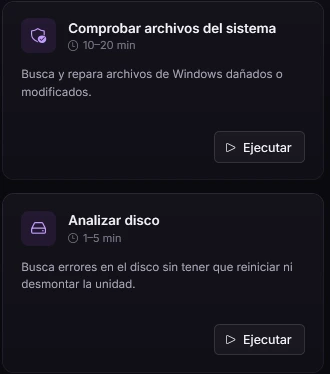
11 Windows tools in one click, from checking system files to syncing the clock.
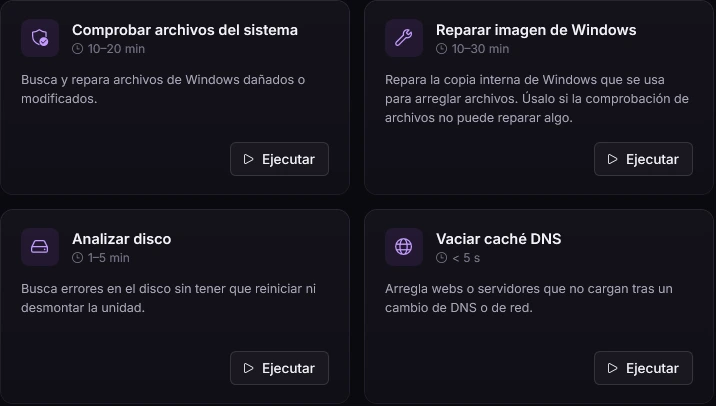
Repair Windows in Creatyk: check system files, repair the Windows image, clean up components, scan disk, flush the DNS cache and reset the network (the app shown in Spanish).
Repair Windows in Creatyk: check system files and scan disk, each with its Run button (the app shown in Spanish).

Processes

What's open, how much memory it uses, and "Free RAM". Closing programs from here needs Nova, and Windows, security and anticheat processes are protected.

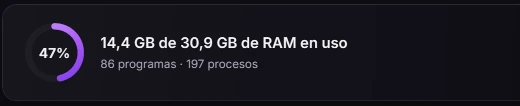
Processes in Creatyk: 47% of RAM in use, 14.4 GB of 30.9 GB, 86 programs and 197 processes, with the Refresh and Free RAM buttons (the app shown in Spanish).
Processes in Creatyk: 47% of RAM in use, 14.4 GB of 30.9 GB, 86 programs and 197 processes (the app shown in Spanish).

Network and peripherals

A bufferbloat test, latency to your router and to game servers, a mouse test and open ports. Network optimization and scanning your local network need Nova.

Bufferbloat grade

  • A+under 5 ms
  • A5 to 30 ms
  • B30 to 60 ms
  • C60 to 200 ms
  • D200 to 400 ms
  • F400 ms or more

And also: startup programs, boot times and a BIOS guide for your motherboard.
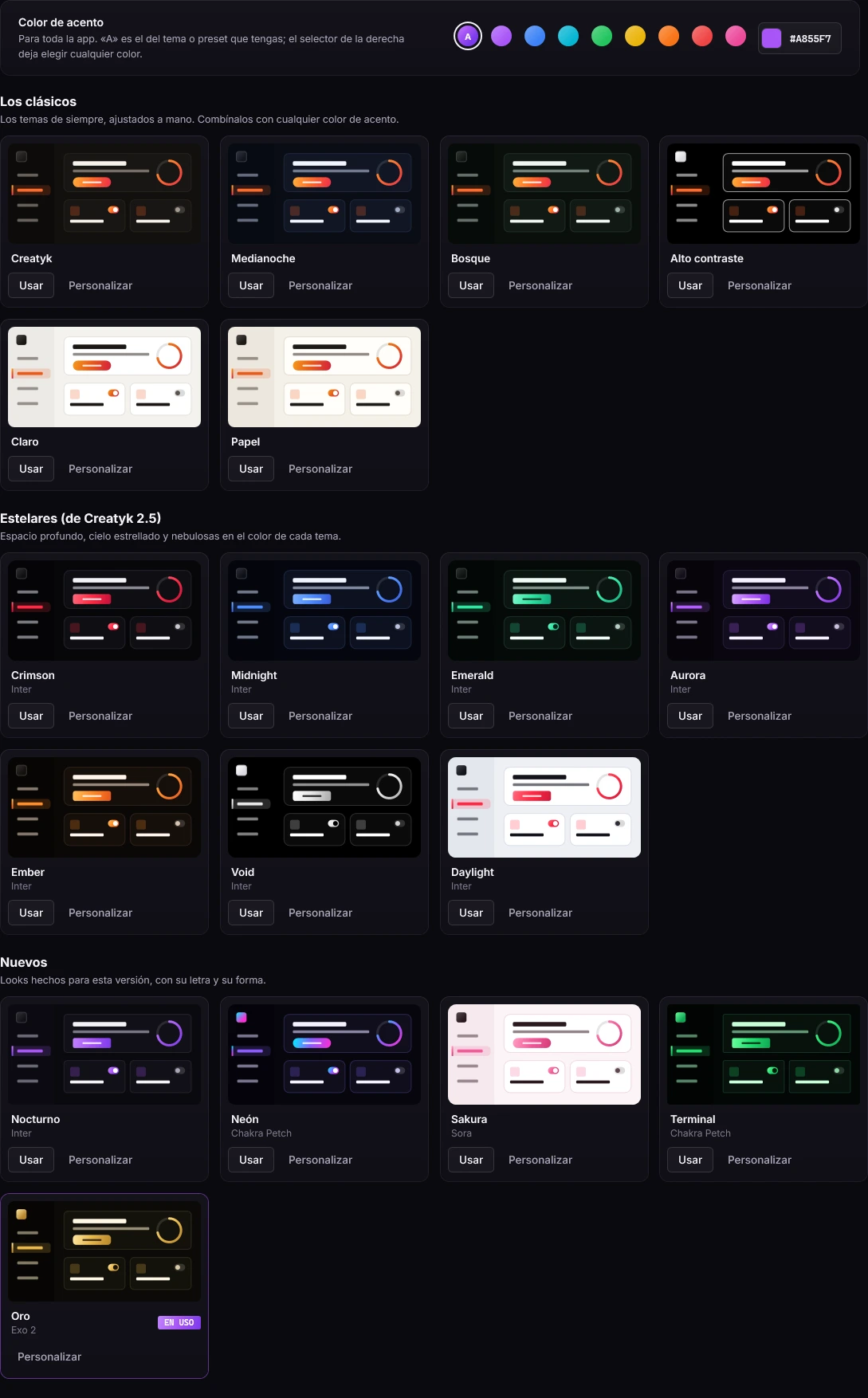
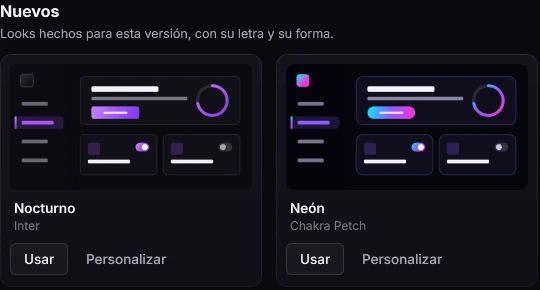
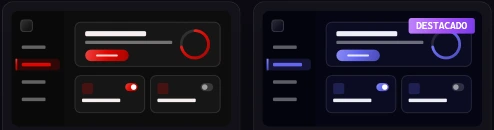
Appearance in Creatyk: the accent color and the 18 themes, classic, stellar and new, each with its preview (the app shown in Spanish).
Appearance, Themes tab: all 18, top to bottom, each with its preview.
New themes in Creatyk's Appearance: Nocturno in Inter and Neón in Chakra Petch (the app shown in Spanish).

Appearance, your way

Themes, any accent color you like, presets and the Community. Free on every plan.

18themes: classic, stellar and new

  • Any accent color you like, across the whole app.
  • A simple or advanced preset editor: colors, shape, font, effects and a background picture.
  • Side menu, icons only or a top bar, in three sizes.
  • The Community: try other people's presets, like them and publish yours. A person reviews each one before it goes live.
The Community in Creatyk's Appearance: presets sorted by popular, new or featured (the app shown in Spanish).
Community presets in Creatyk, with their previews (the app shown in Spanish).

Nothing changes on your PC until you press "Apply changes". And everything can be undone, for free.

There's always a way back

The History keeps how everything was before each change, on every plan.

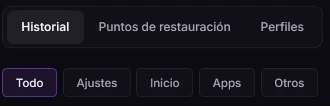
Backups & restore in Creatyk, History tab: the All, Tweaks, Startup, Apps and Other filters, and the Undo all button (the app shown in Spanish).
Restore points in Creatyk: the Open System Restore and Create point buttons (the app shown in Spanish).
The History, Restore points and Profiles tabs, and the History filters in Creatyk (the app shown in Spanish).
  1. A restore pointBefore applying, the app creates one. It's on by default and, if System Protection is off, it offers to turn it on.
  2. All or nothingIf a tweak fails halfway, the whole tweak is rolled back. Nothing is ever left half applied.
  3. The HistoryEvery tweak, startup program and game profile keeps how it was. Undo them one by one, or with "Undo all".
  4. Back on its ownGame mode puts things back when you close the game, and the fans return to the BIOS when you close the app.

What the History can't undo

Files you delete in Cleanup, Windows apps you remove (most come back from the Microsoft Store), repairs, and drivers or programs you install. The NVIDIA profile, the power limit and DNS each have their own reset on their page.

See what the app does and sends

Start for free with Orbit

The Orbit level, the gaming check, every tool and the Community cost nothing. And everything can be undone.

For Windows 10 and 11 (64 bits). Free to start.